Downloading Data
These instructions will guide you on how to download data to EMBER-DANDI.
Below, we have provided one set of instructions for users that are new to EMBER-DANDI, and one set for experienced users. Please follow whichever best fits your needs:
- I've used DANDI or CLI tools before
- I'm new to Python, CLI, and/or DANDI
- Learn how to set up Python, install the DANDI CLI, and use NWB
Instructions for Experienced Users
Download a full dandiset
The following is a quick reference for downloading data using the DANDI Client:
dandi download https://dandi.emberarchive.org/dandiset/<dandiset_id>/<version>
Instructions for New Users
Install Python and the DANDI Client
Please refer to our Dandi Client instructions.
Download a full dandiset
-
Navigate to the dandiset of interest on EMBER-DANDI
-
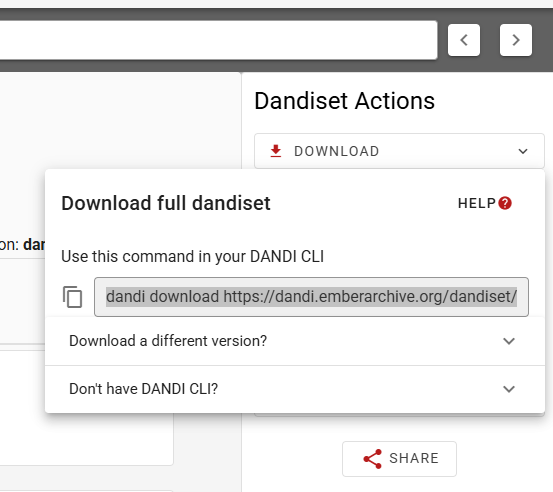
Click the "Download" tab on the right-hand panel.
- Hint: If you want a different version of the dandiset than the default, click the dropdown labeled "Download a different version?" and select the desired version.
-
Copy the command and paste it into your terminal. For example,
dandi download https://dandi.emberarchive.org/dandiset/<dandiset_id>/draft
Download a single file
-
Navigate to the dandiset of interest on EMBER-DANDI
-
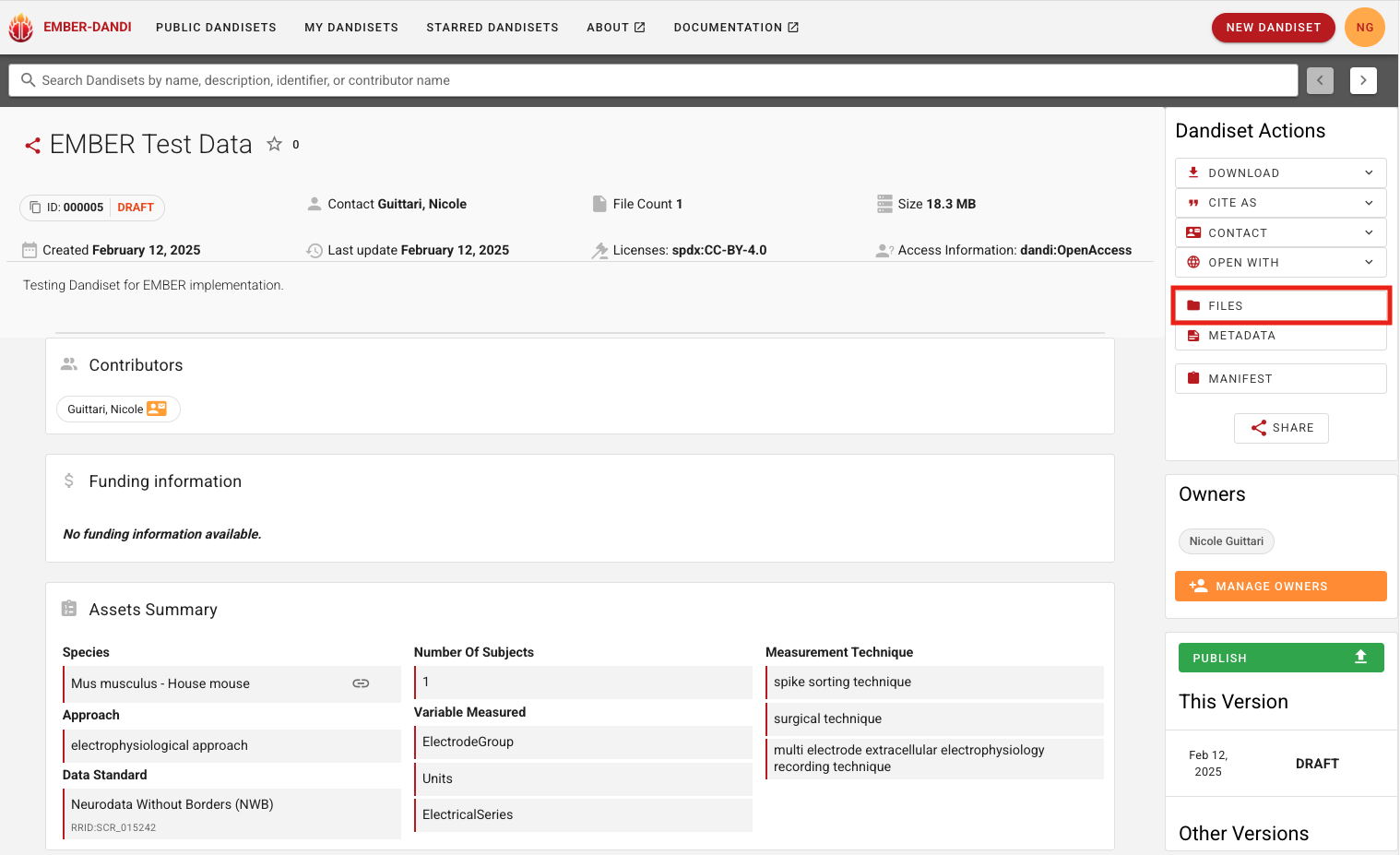
Click the "Files" tab on the right-hand panel.
-
On the file explorer page for the dandiset, navigate to the folder containing the desired file (if not at the root level)
-
Click the download button on the desired file.