Skip to content

EMBER-Vault: Submission of Multimodal Human Data (BIDS + NWB)

EMBER-Vault is the subsystem of the EMBER archive designed to store and control access to sensitive human data, including human health data and identifiable human data. It is suitable for human neural and behavioral experiments with sensitive data, and is not appropriate for open data release or animal data. It is compliant and aligned with relevant standards for PHI/PII data storage.

For more in-depth information on the recommended data standardization workflow, see the guide on data standardization

Your team will standardize and validate data client side, then upload to the EMBER-Vault archive using Globus. This resource is under active development, and we anticipate EMBER-Vault will be available soon!


Upload to EMBER-Vault via Globus

Account Setup

Pre-requisite

You will need to have an active Globus account, which can usually be obtained through your academic instituion.

  1. Request access to EMBER-Vault by contacting EMBER admins. You will be asked to provide information and reasoning as to why you need an EMBER-Vault account which will be used to determine your eligibility
  2. If and when your account is approved, EMBER admins will contact you providing your EMBER-Vault username and temporary password as well as the name of your EMBER-Vault project collection
  3. Log in to Globus. This can be done through your institution's authentication method
  4. Navigate to your EMBER-Vault project collection
  5. Select File Manager
  6. Type in Collection name
  7. Select Collection
  8. Follow the steps to link your Globus and EMBER-Vault accounts.
  9. Once you have authenticated with EMBER-Vault and linked your accounts, you will be routed back to File Manager and see the following: Globus warning your credentials need setup
    1. Do not press continue
  10. Respond to your EMBER-Vault onboarding email to let EMBER admins know so they can connect your user to the data store
  11. Once you receive confirmation from EMBER admins to continue, sign back in to Globus and EMBER-Vault navigating to your EMBER-Vault project collection. You should now have full access and be able to download/upload data as your permissions allow

Data Upload

Once your user account and project have been set up, you are ready to upload your data to EMBER-Vault!

1. Log in via Globus & EMBER-Vault

  1. Log in to Globus using your institutional or any other authentication method you use to access the Globus Web UI
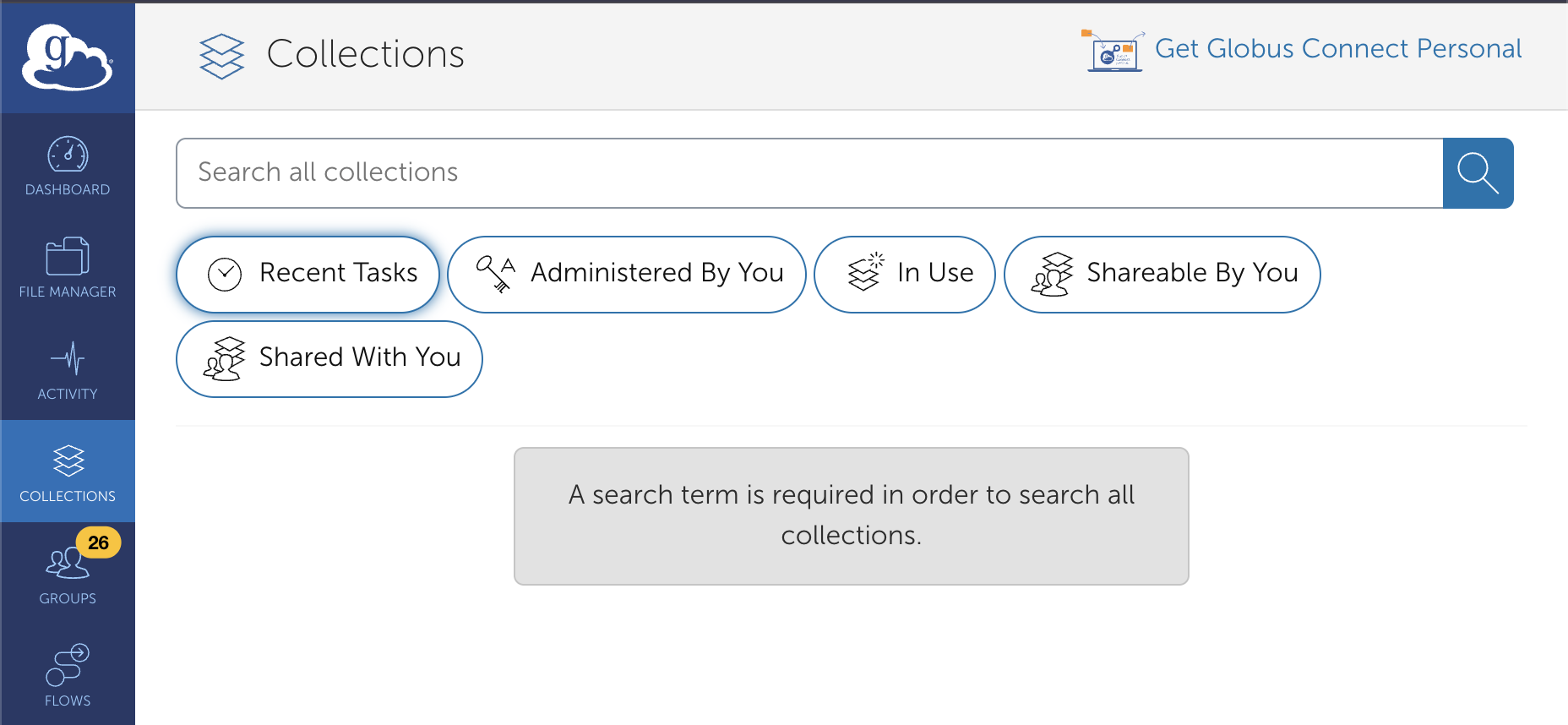
  2. Once you're logged in to Globus, navigate to your collections and ensure the default "Recent Tasks" filter is deactivated Collections screen in Globus Web UI
  3. Search for "EMBER" and you should find your project's collection located on the Ember-Vault Endpoint Collections ember search results screen in Globus Web UI
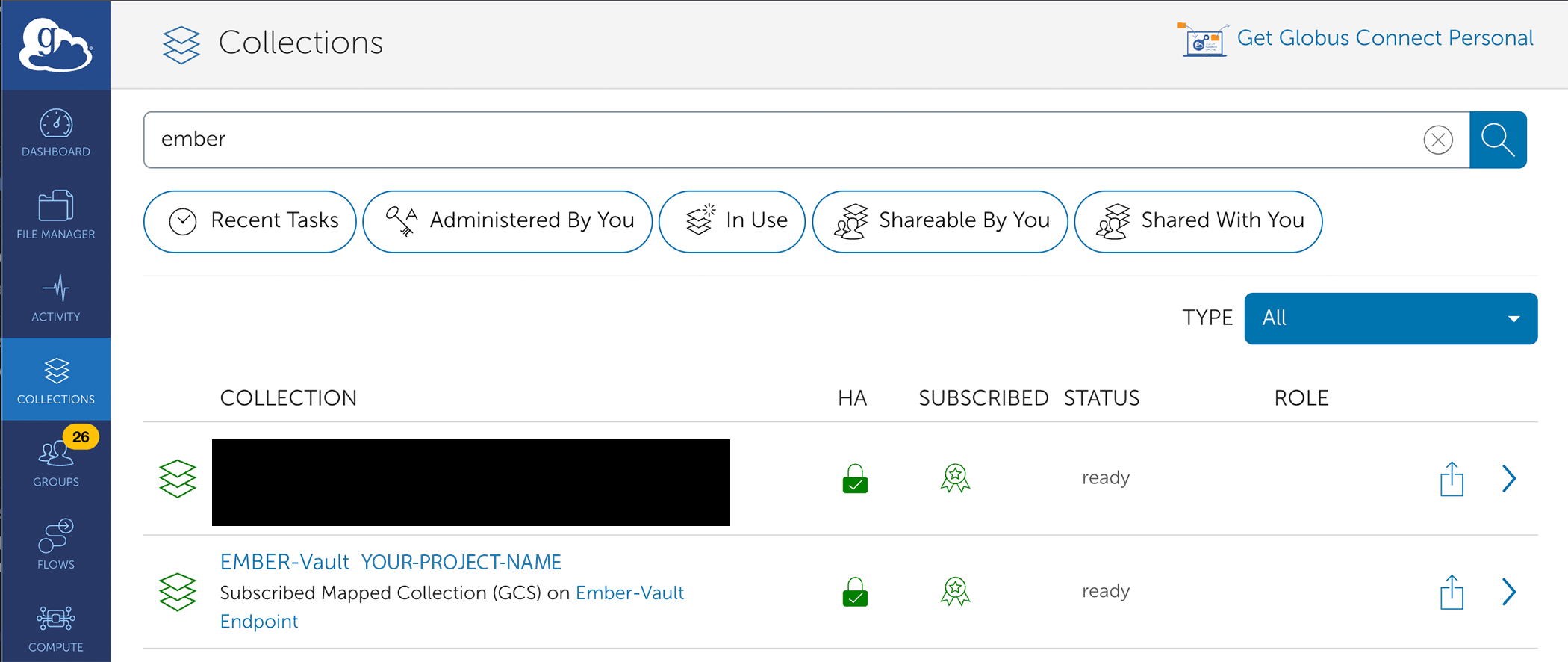
  4. Select your project's EMBER Vault collection by clicking on the name. In this case, it is EMBER-Vault YOUR-PROJECT-NAME
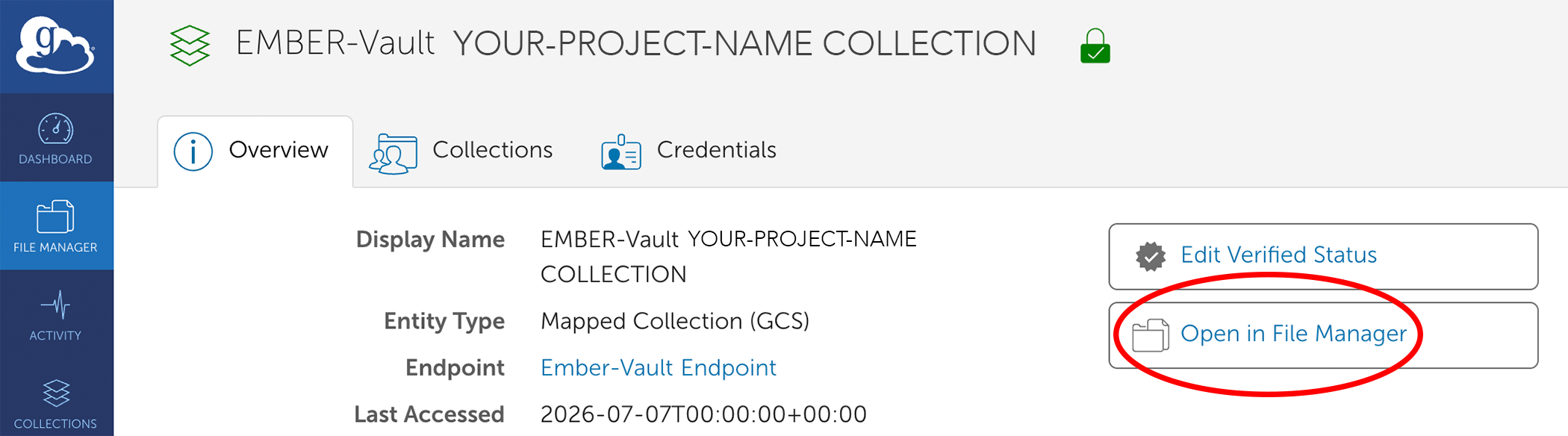
  5. This should take you to the collection manager. Here, you should select Open in File Manager as indicated in the figure below Project collection manager in Globus Web UI
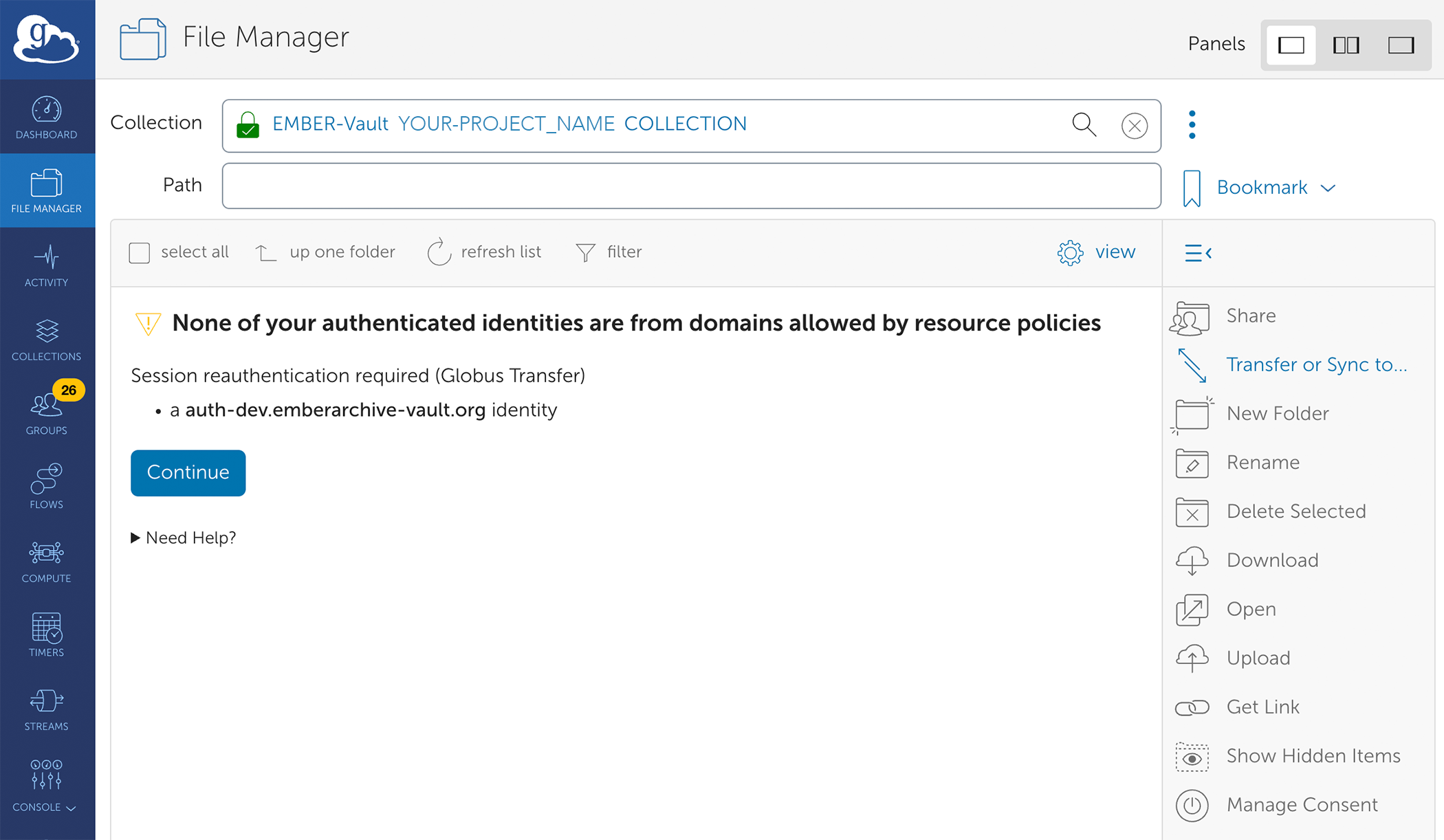
  6. In the File Manager, you will be met with a warning that you are not authenticated with auth.emberarchive-vault.org. Press the Continue button in order to authenticate with EMBER-Vault Project collection file manager in Globus Web UI
Note

If you have not yet created an account with EMBER-Vault and thus do not possess Keycloak credentials, please refer to the above section titled Account Setup

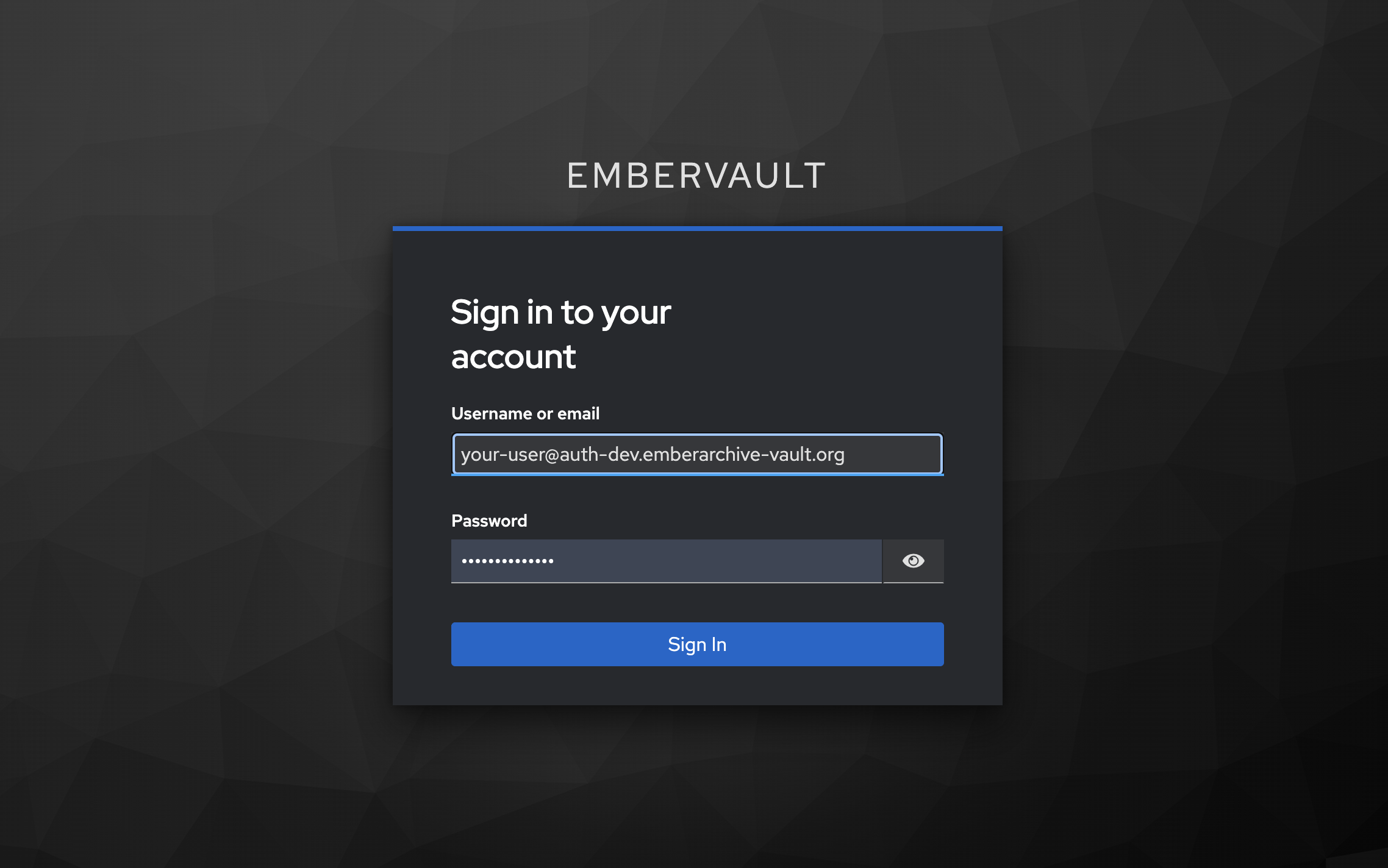
  1. You will then be redirected to EMBER-Vault's user login page. Here, you will sign in using your EMBER-Vault credentials which were generated during account setup.

    These should be a username provided to you by admins ending in @auth.emberarchive-vault.org and the password you set up.

    After this screen you will also be prompted to enter a one-time code from your MFA application Account login screen in EMBER-Vault Keycloak
2. Select File/Folder to Upload

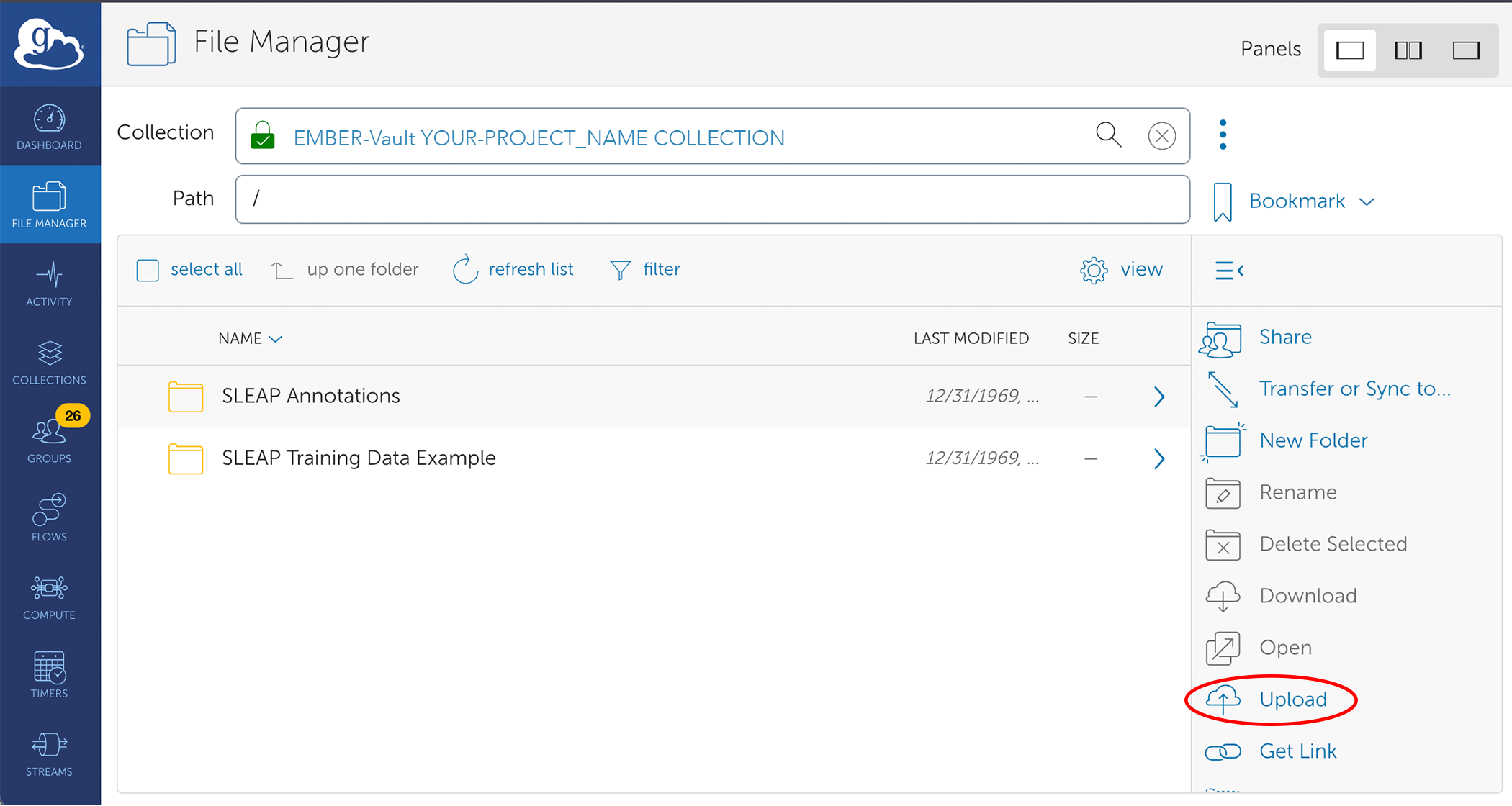
  1. Once you have signed in to Globus and EMBER-Vault, you can now access your EMBER-Vault project via the file manager. To begin uploading your data, click on the Upload button circled in the figure below. File manager for EMBER-Vault project collection in Globus web UI
  2. Clicking the Upload button will bring up an option to select files or a folder to upload to the collection from your local machine. For this demonstration, we will be uploading a folder File manager file/folder upload for EMBER-Vault project collection in Globus web UI
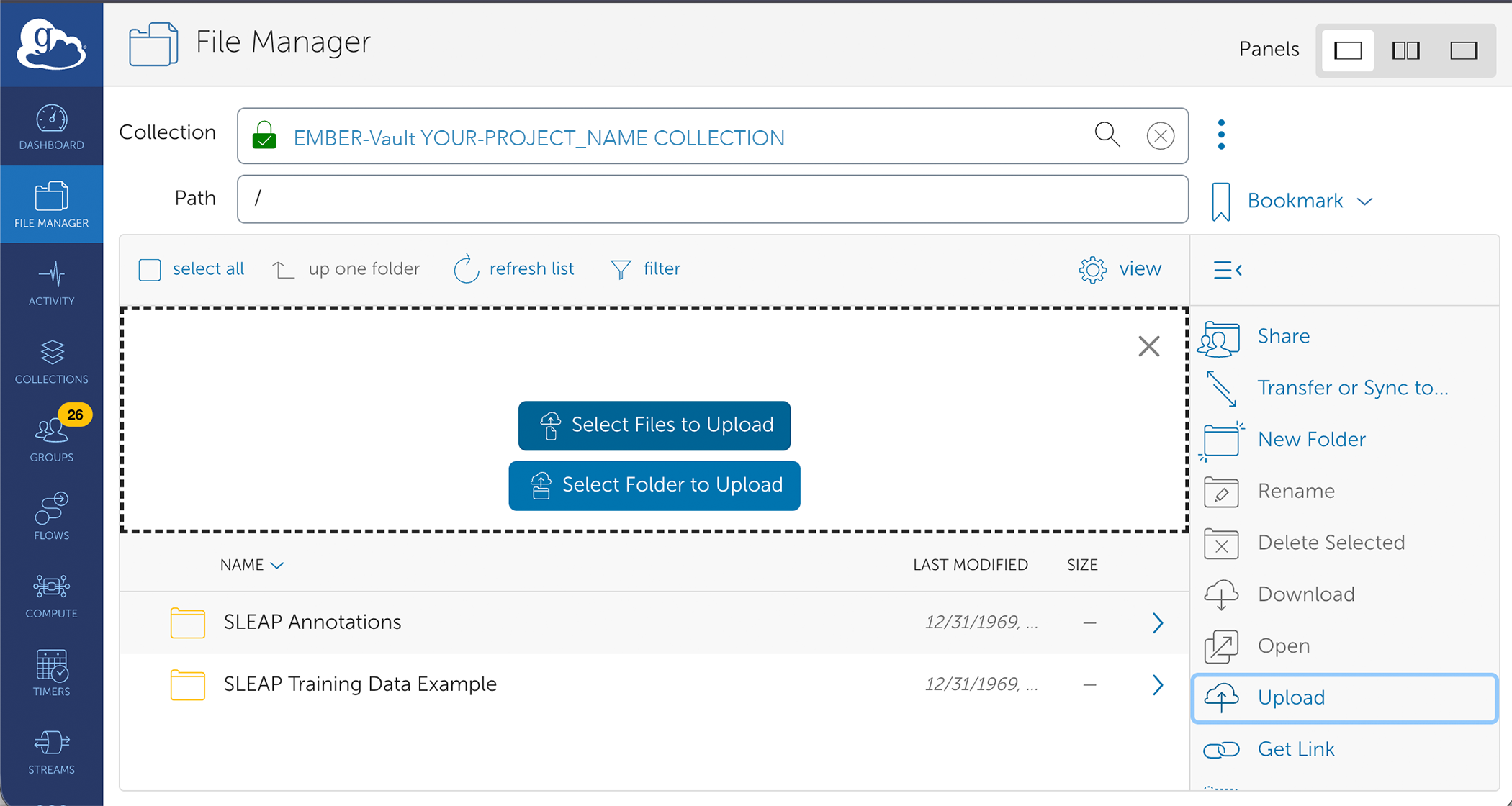
  3. You will be prompted to select a folder in your local system to upload to EMBER-Vault via Globus. Select your desired folder and click Upload File manager file/folder select for upload to EMBER-Vault project collection in Globus web UI
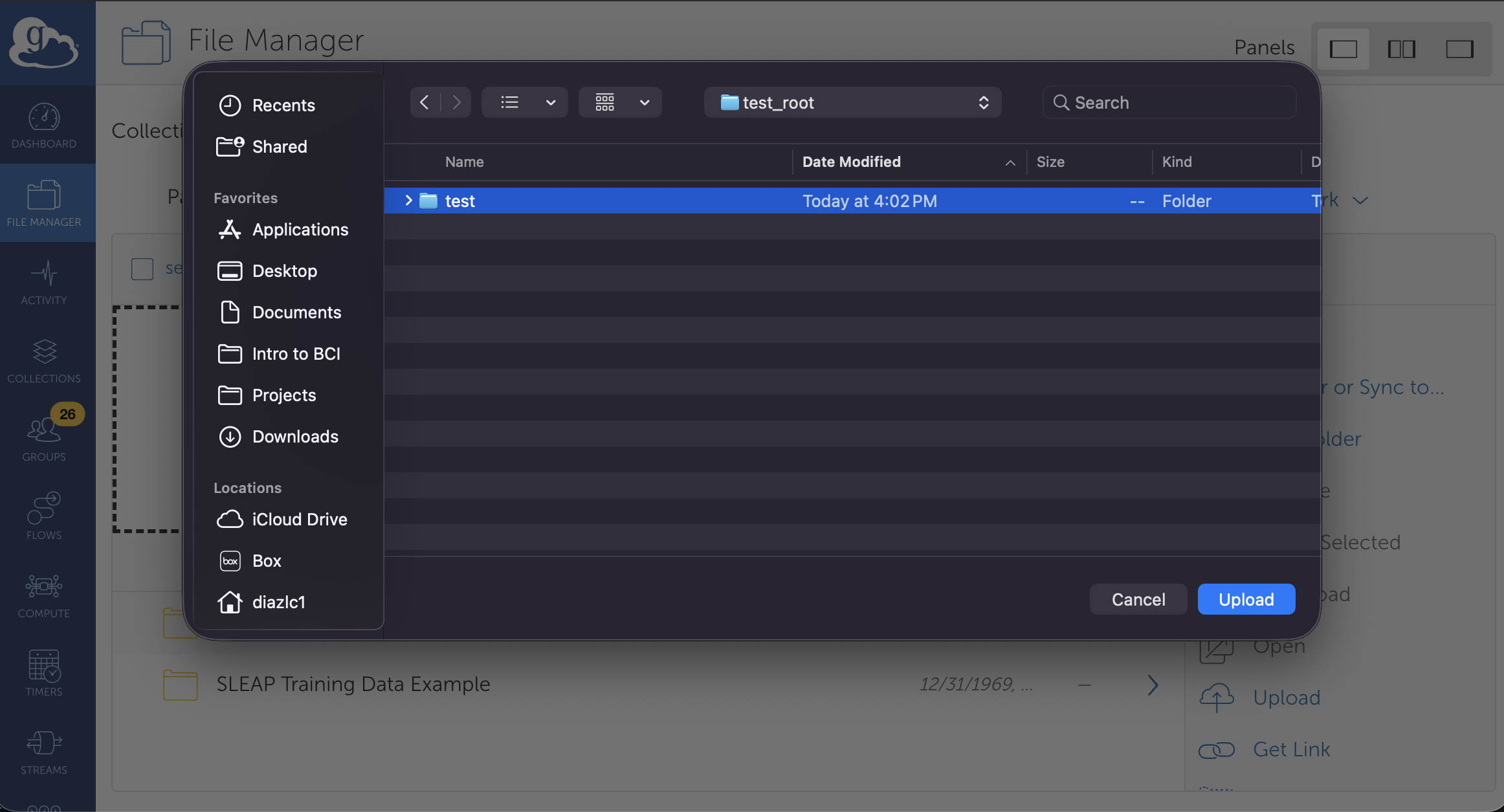
  4. You will then be prompted to confirm your upload, to do so select Upload File manager confirm upload to EMBER-Vault project collection in Globus web UI
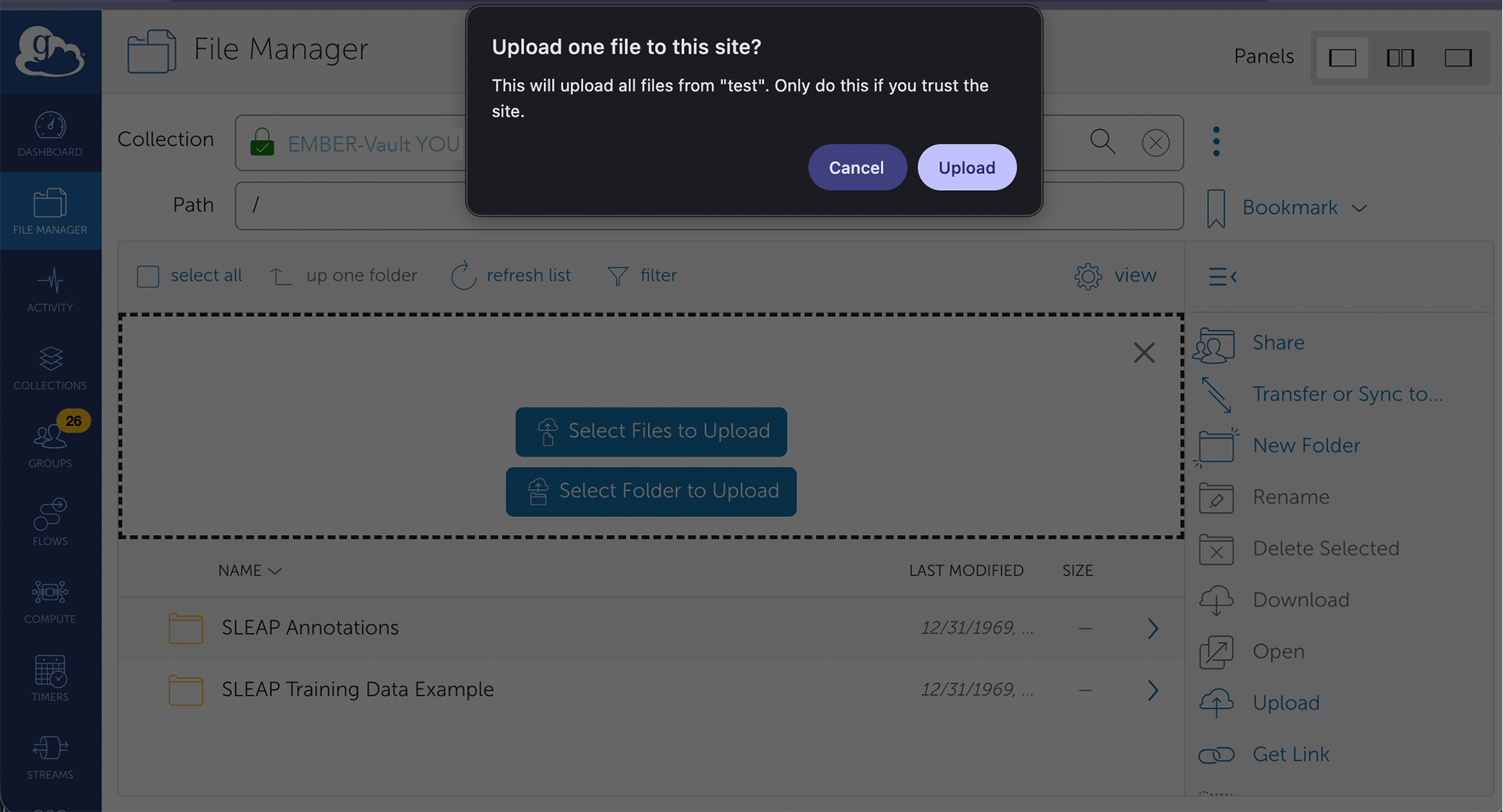
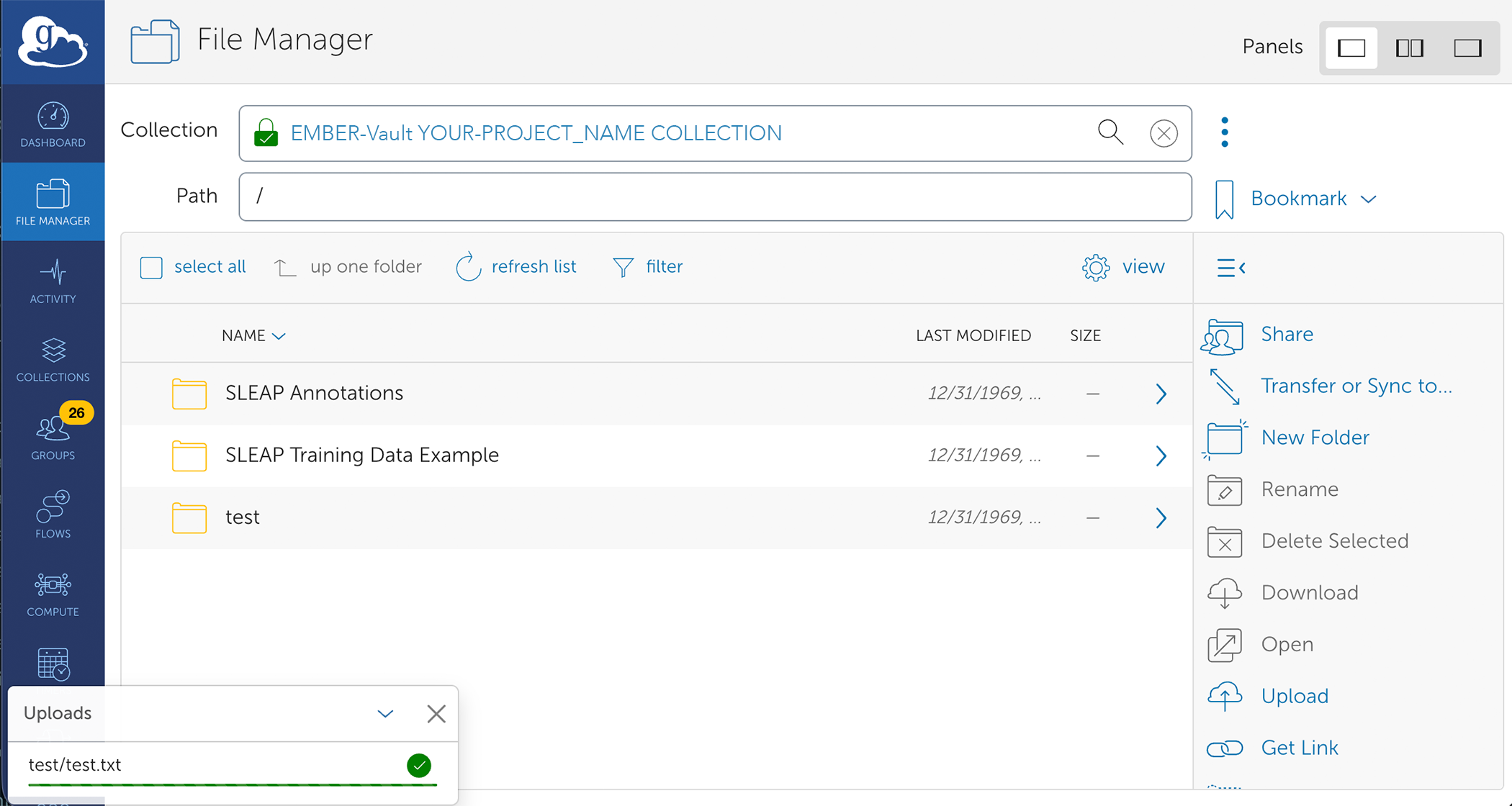
  5. You should then see in real time the upload progress of your file or each file in the folder you selected. Congratulations! You have successfully uploaded your data to EMBER-Vault :) File manager successful upload to EMBER-Vault project collection in Globus web UI